Overview
All plansOverview is the home screen of your dashboard and the first thing you see after logging in. Before your AI is live it works as a setup tracker: a banner at the top names how many activation steps remain and links straight to the next one. Once you are live it becomes a daily summary, led by the AI Daily Briefing, which reads your recent activity and tells you what deserves attention today rather than making you hunt through reports. Underneath sit your headline numbers for the period, recent calls and bookings, and quick actions for the jobs owners do most. The wording adapts to your industry, so a restaurant sees reservations and covers where a salon sees appointments. Nothing here is configuration: every tile is a shortcut into the page that owns that data.
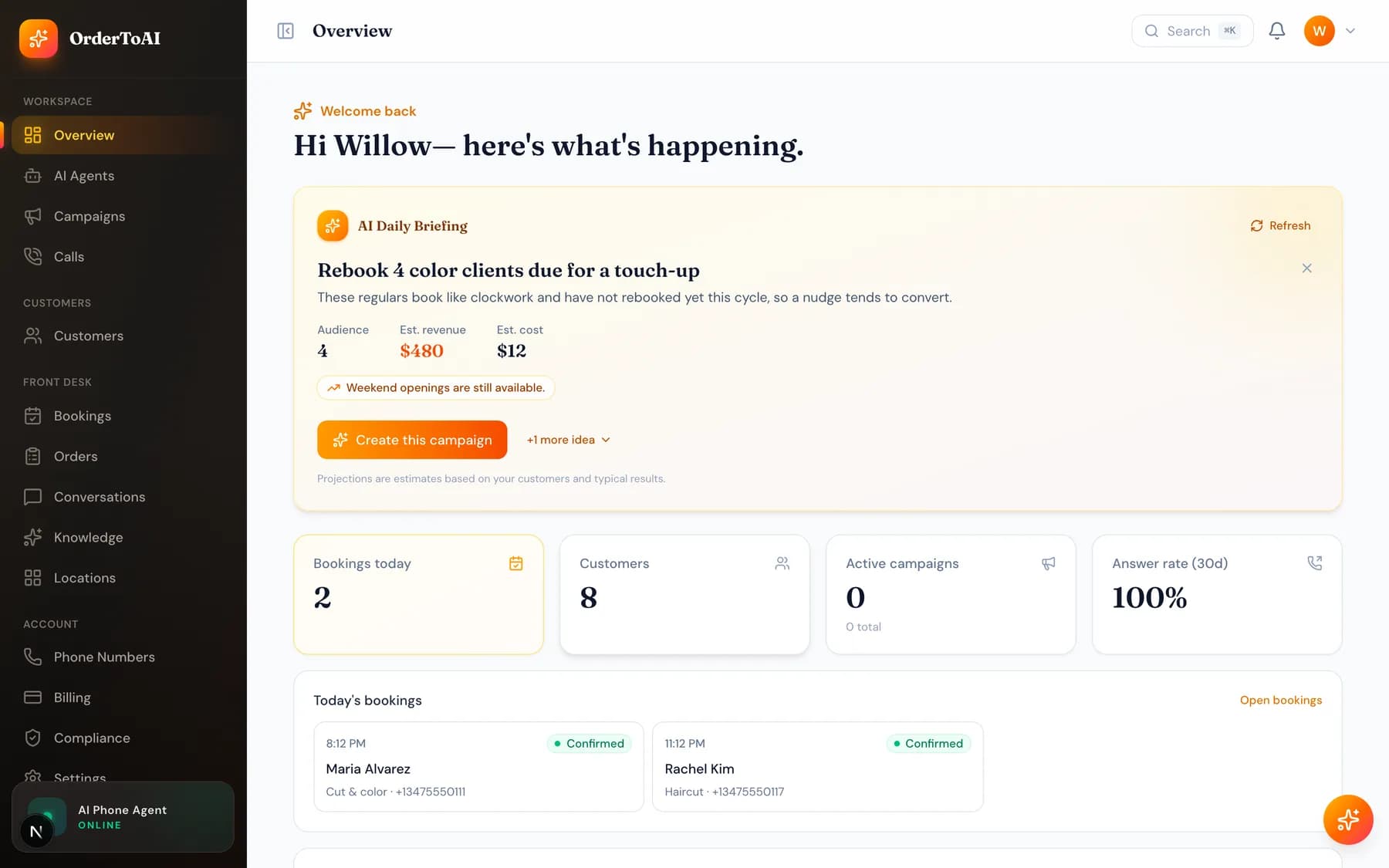
What is on the page
| Area | What it does |
|---|---|
| Activation banner | Appears until your AI can take calls. Names how many steps are left and links to the next one, usually getting a phone number or forwarding your line. |
| AI Daily Briefing | A short written read of your recent activity: what changed, what needs attention, and the opportunity worth acting on. Refresh regenerates it on demand. |
| Headline numbers | Calls, bookings, and revenue signals for the current period, with the wording matched to your industry. |
| Recent activity | The latest calls, bookings, and conversations, each linking into its full record. |
| Quick actions | One click into the jobs owners repeat: importing customers, tuning the AI, teaching it your information, and forwarding your calls. |
| Finish setup panel | A floating checklist in the bottom corner that stays until activation is complete, so the remaining steps follow you around the dashboard. |
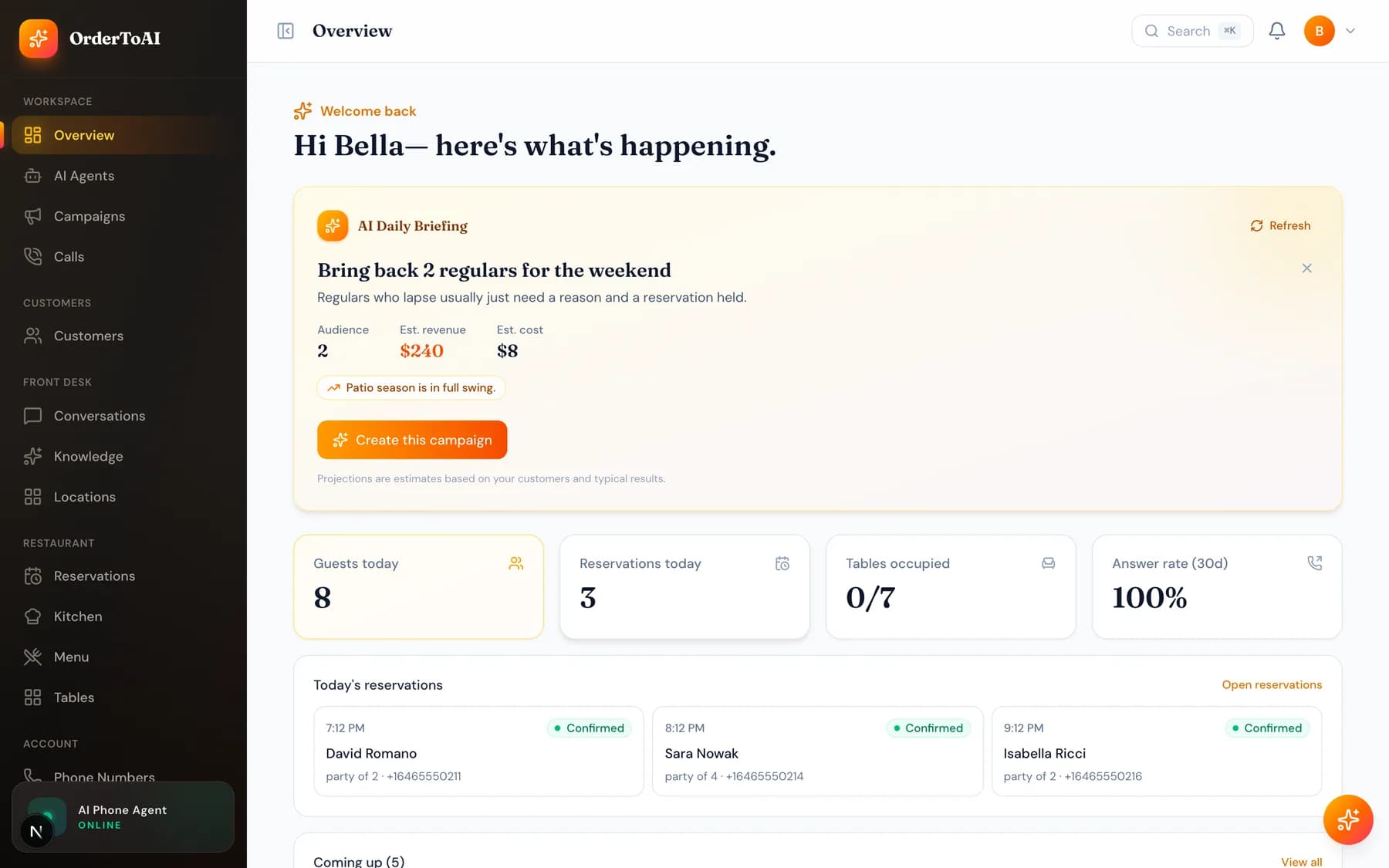
Restaurants see a different Overview
When your account is set to the restaurant industry, the language and tiles change: reservations instead of appointments, covers instead of headcount, and kitchen activity instead of a generic job list. This is driven by the industry on your account rather than by anything you configure here.
Questions
- Why does my Overview say my AI is not live yet?
- Because at least one activation step is outstanding. The banner names which one, and it is almost always either that no phone number is attached to your account yet or that your existing business line has not been forwarded to your OrderToAI number. Both are linked directly from the banner.
- How often does the AI Daily Briefing update?
- It regenerates daily, and you can force a fresh read at any time with the Refresh control on the briefing card. It is based on your own account activity, so a brand new account sees a prompt to import customers rather than an analysis of calls that have not happened yet.
- Can I change what the Overview tracks?
- The tiles follow your industry and plan rather than being individually configurable. If the wording does not match your business, the industry setting on your account is what to change, and every label across the dashboard follows it.
- Where did my numbers go after switching locations?
- The location switcher in the top bar filters the whole dashboard, Overview included. If a tile looks empty, check whether you are viewing a single location that has not had activity yet rather than all locations.
Next steps
AI Agents
The full reference for the AI Agents page and the agent editor: identity, voice, behavior, brain, skills, conversation timing, knowledge, upselling, and advanced.
Calls
Every call your AI made or answered, with full transcripts, outcomes, and the filters that turn a call log into something you can actually learn from.
Going live: the activation checklist
The steps between creating an account and your AI answering real calls: get a number, set your transfer contact, review knowledge, and forward your line.
Hear it on your own business
Reading about it only goes so far. The demo calls you and answers as your business, using your real Google profile, before you create an account.
Start free trial