Creating your account
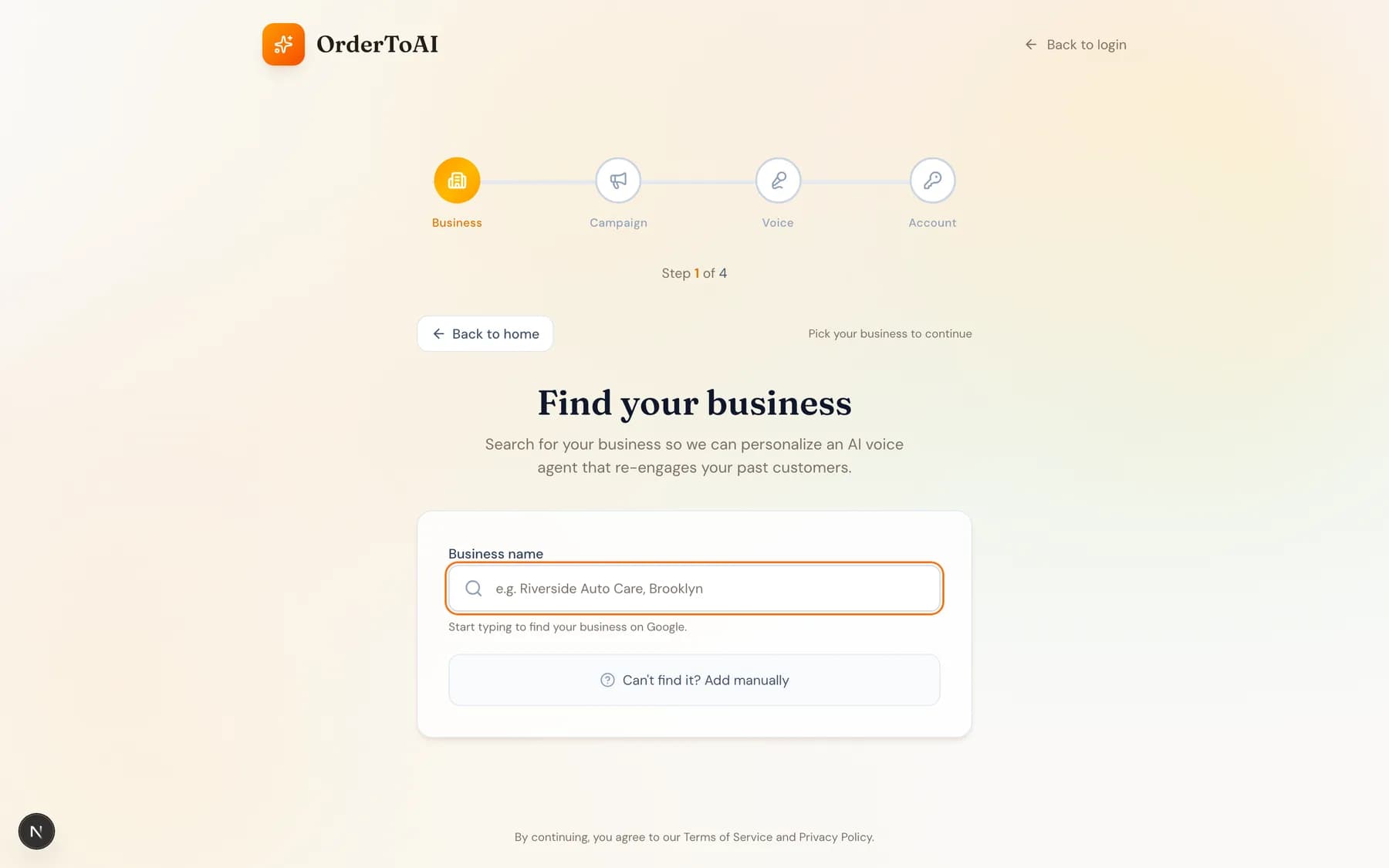
All plansSignup has four steps and takes about five minutes. First you find your business by name so the assistant can read your hours, services, and reviews from your Google profile. Second you choose how it should sound and hear it answer a live demo call as your business. Third you pick between Win-Back, which calls your existing customers to bring them back, and Front Desk, which adds the inbound AI receptionist. Fourth you enter payment details to start the five day free trial and choose your phone number. You are asked to confirm two things in writing along the way: that you accept the terms, and that any customer list you upload is people you already do business with. That second confirmation is what keeps outbound calling on the right side of United States telemarketing law.
Step by step
- 1
Search for your business
Start typing your business name. Results are biased toward your area, so a short search like "auto repair" usually finds you without typing the full name and city. Select yourself from the list and your Google profile becomes the assistant's starting knowledge.
- 2
Enter your contact details
Your email address, and optionally a phone number for the demo call. This is also where you accept the Terms, Privacy Policy, and Acceptable Use Policy, and confirm the compliance attestation.
- 3
Pick a voice and hear the demo
Choose the voice and language your AI answers in, then take a real call from it. It answers as your business with your real details, so what you hear is what your customers will hear.
- 4
Choose your plan and start the trial
Pick Win-Back or Front Desk, enter your card to start the five day free trial, and choose your phone number. Nothing is charged during the trial and you can cancel in one click.
If your business is not on Google
You can enter your business by hand instead. Choose the manual option on the search step and type your business name. The assistant starts with less knowledge than a Google backed signup, so plan to spend a few extra minutes on the Knowledge page adding your hours, services, and the questions your customers ask most.
What you can change later
Almost everything. Your voice, persona, hours, services, greeting, transfer number, and knowledge are all editable from the dashboard after signup, and changes take effect on the next call. The two things worth getting right early are your plan, since it decides which features are unlocked, and your phone number, since it becomes the line you give out.
Questions
- When do I enter payment details?
- At the end of signup, so your service continues without interruption when the trial ends. Nothing is charged during the five days, and cancelling during the trial is one click on the billing page and costs you nothing.
- What is the difference between Win-Back and Front Desk?
- Win-Back is outbound: the AI calls your existing customers to bring them back, re-book them, and remind them. Front Desk includes everything in Win-Back and adds the inbound side, where the AI answers your phone and texts, books appointments and reservations, takes orders, and answers questions about your business. Most businesses that want an AI receptionist choose Front Desk.
- Can I change my plan after signing up?
- Yes, from the Billing page in your dashboard. Upgrading from Win-Back to Front Desk unlocks the inbound surfaces immediately. Downgrading keeps your data and simply locks the Front Desk features, so nothing is lost if you change your mind again.
- What happens to my Google profile information?
- It is read once to build your assistant's starting knowledge: your hours, services, address, and public reviews. You can edit every part of it afterwards on the Knowledge page, and the assistant only ever says what your knowledge contains rather than inventing details about your business.
Next steps
Quickstart
Go from signing up to an AI that answers your business calls. The five minute path: find your business, hear the demo, pick a number, and forward your line.
Going live: the activation checklist
The steps between creating an account and your AI answering real calls: get a number, set your transfer contact, review knowledge, and forward your line.
Knowledge
What your AI knows, where that knowledge comes from, and how to add hours, services, prices, and answers so it stops saying it does not know.
Hear it on your own business
Reading about it only goes so far. The demo calls you and answers as your business, using your real Google profile, before you create an account.
Start free trial